Pioneer VREC-Z410DC dash cam
3.5
Pros & Cons
-
Great 3K image quality, day or night. -
Displays a map when watching video. -
Clear audio quality. -
Accessible settings through CarPlay and Android Auto.
-
Relies on Wi-Fi which competes with Apple CarPlay. -
The app needs work.
As the father of a 16-year-old who’s learning to drive, it’s fair to say that I desperately need a dash cam. To be honest, everyone should have one, and not just because you can post cool videos. It’s because the road is a chaotic place — a lesson I spent a year teaching my daughter (and my son). Things happen in a flash, and a dash cam can provide that memory rewind or critical evidence that you, the police, or your insurance company might need.
Also: 5 hidden iOS 27 upgrades that make a big difference
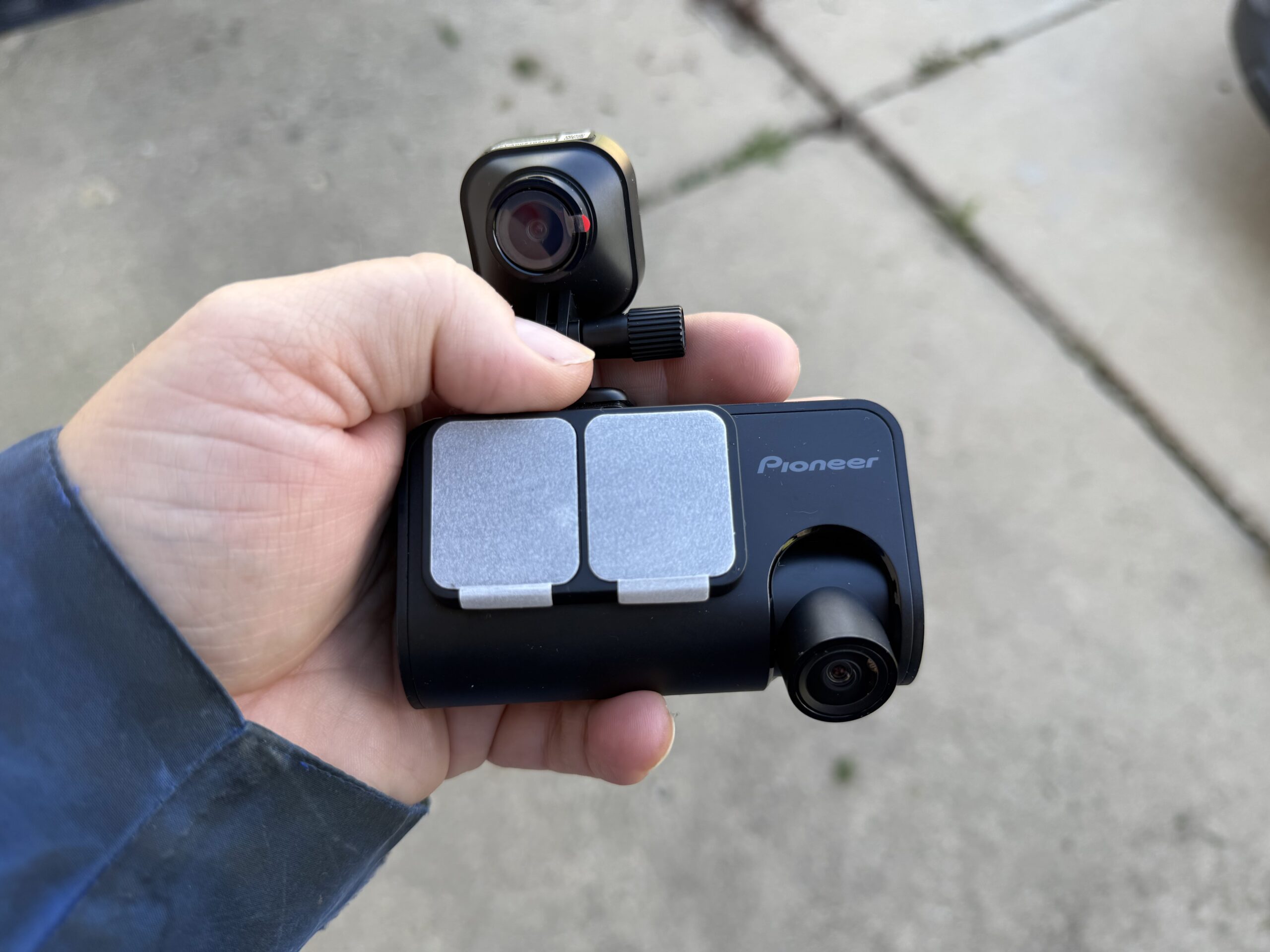
Most dash cameras sit on your dashboard and record what’s going on in front of you, and that’s usually enough. But Pioneer built one that faces backward, too, to see the traffic behind you as well as in front. It connects to your phone and Apple CarPlay, which is a nice bonus, or so I thought before I realized just how necessary that step was — more on that later. I’ve been testing the Pioneer VREC-Z410DC dash camera for about 10 days, and I’ve discovered some highs and a big low.
Setting it up
The first thing you should know is that setting it up — like setting up any dash cam with multiple cameras — is a chore. You need to run wires everywhere. Pioneer includes a pry/poker tool to jam wires into panel gaps and whatnot, which is helpful, but running the wires for this dashcam is not trivial, especially if you mount the camera at the top of the windshield (for a better view).
Then, you need to run a cable from your car’s power outlet down around the driver’s or passenger’s feet, up through the A-pillar, across the windshield/roof joint, and ultimately to its destination.
Also: The best dash cams: Expert tested
From there, you need to run a second cable from the main dash cam along the windshield/roof and past both doors, and back to your hatch. In my case, I had about eight feet of extra wire I had to shove up into the ceiling to make it disappear. Both cameras attach to the windows with adhesive that adheres to a plastic sheet that in turn adheres to your windshield/back window. I like this arrangement — it’s far better than trying to use suction cups, but I’m also unsure how it will hold up during the intense heat of summer or the bitter cold of winter, so stay tuned.
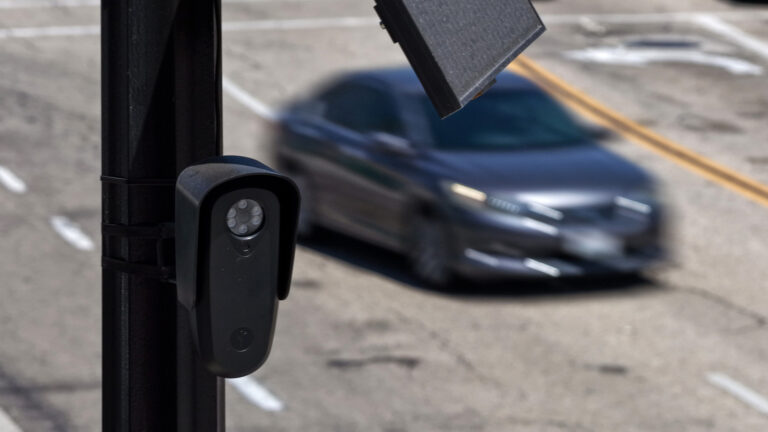
Both cameras are adjustable vertically, so you can aim them properly. But the main dash cam unit doesn’t have a screen on it. There are two buttons: one for power and one for an emergency, three lights, and a speaker/microphone. That’s the hardware in a nutshell.
Wi-Fi is key
You control the camera through an app, which is neat because that app also works with CarPlay and Android Auto. There’s only a bit of functionality there — you can start a recording, or take a photo, etc. Most of the control comes through the app on your phone, and that’s the key weakness here. To use the app, you need to connect to the camera’s private Wi-Fi network.
 Adam Doud / ZDNET
But at least with iPhones, your car requires Wi-Fi to connect to CarPlay. So, when setting up the camera or trying to control it, your phone is in a constant fight (and constantly disconnecting from the camera’s Wi-Fi) to connect to your car’s Wi-Fi for Apple CarPlay.
The dash cam doesn’t have its own power source, so for most cars, in order to turn the camera on, you need to turn your car on, and that’s when the fight starts. Ultimately, in order to get just about anything done, I resorted to plugging the camera into a power brick with a USB-A connection while leaving the car off. It was maddening.
Also: I’m an Android Auto ride or die – but Apple CarPlay beats it on these 3 features
Additionally, to get footage off the camera, you need to connect to it and transfer the footage. Footage is recorded in 30-second or one-minute chunks. Each 30-second video takes about 90 seconds to download — even though the app only tells you it’ll take 53 seconds — I timed it. It’s 90 seconds almost every time.
It gets better
Once you get past that roadblock, the rest is solid. The footage captured comes from both the main and secondary cameras, and (optionally) from audio inside the car. So, when your daughter accidentally curb checks a driveway coming out of school and blames it on the car “that was driving down the middle of the road” (it wasn’t), you can show her the footage and turn it into a teachable moment.
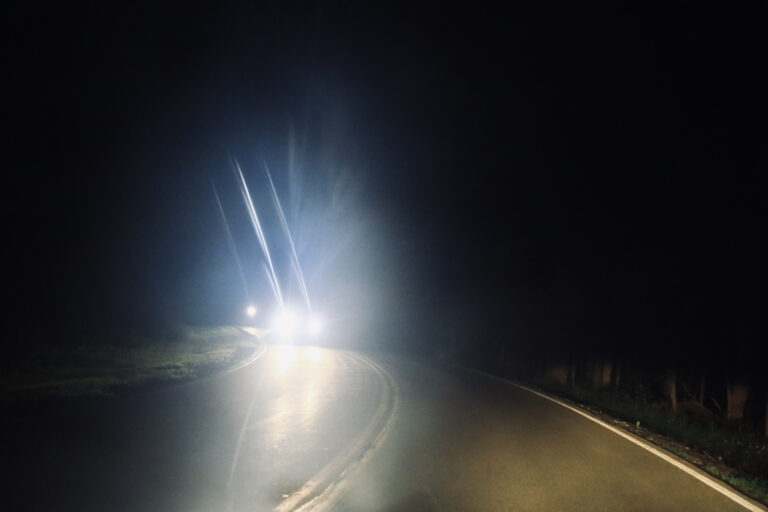
The footage itself is captured in 3K. It’s clear enough to read a license plate at very close range, which is important. The nighttime footage is clear as well, though a little grainy, as most nighttime footage tends to be.
Also: My favorite Apple CarPlay apps: functional, reliable, and mostly free
Footage capture is either manual, triggered on the car’s CarPlay display, or automatic, triggered when an event occurs, such as an accident. In those cases, the previous five seconds and the following 25 seconds are automatically captured. Plus, the camera’s memory card stores about 120 minutes of previous footage in one-minute chunks if you need to go back and review it for any reason.

When you record from CarPlay, it records for 30 seconds, but you just need to know that it’s 30 seconds. There’s no UI on the screen to indicate how long the video records.
By default, event sensitivity is set to medium, which is very trigger-happy. Some events that trigger an emergency incident include the aforementioned curb check, rolling over a set of railroad tracks, and, in one case, a sudden brake with nothing actually struck — or at least nothing I could see in the footage.
Also: Your old Android phone can be turned into a dashcam
When playing back the footage in the app, it shows you a map where the car is as you play back the footage, which is pretty neat. If you export the footage, it shows you the GPS coordinates and time overlaid on the bottom of the screen. Not only do you know what happened, but you also know where and when.
So close
The camera also has one other capability that disappointed me. If you press the emergency button, in addition to the 30 seconds of captured video, the camera can — more or less — send your location to two designated contacts. That’s nice, and it’s nice that it doesn’t require a subscription, but the reason it doesn’t is that all it does is generate, but not send, a text message on your phone.
That’s not terribly useful if you’re upside down in a car during an accident. I suppose if you’re conscious enough to press the emergency button, perhaps the reasoning is that you should also be conscious enough to press send on the text message, but this is a very underwhelming feature. If I press the emergency button, I mean it to be an emergency.

Final thoughts
The Pioneer VREC-Z410DC dash camera is available exclusively at Best Buy, in-store or online, for $220. That’s not a bad price for a webcam like this, but there is certainly room to grow here. The software development in particular could use some reimagining. It’s cool that the camera can write a text message — but I wish it would send it too. It’s cool that you can start a recording from CarPlay, but let me know when it’s recording and when it’s done.
There is a lot of room for improvement. Overall, for that price, I want a product that feels more “finished.” This camera is pretty good, but for over $200, I want great.

See full bio
About the Author